Desk & EDC
Best USB-C Hub for MacBook 2026 — Tested for Months
MacBooks have two ports and one of them is always occupied. Michael tested USB-C hubs for MacBook for months — dual monitor support, 100W pass-through, SD slots, and the dongle that failed mid-transfer. With a comparison table.
Short version: For a MacBook, the two things that actually matter are 100W pass-through charging (so your MacBook charges while docked) and dual-monitor support that works with your specific chip (M1/M2/M3 differ here — this is where most hubs get returned). Here’s what I learned the hard way.
A MacBook Pro has two or three ports and every one of them is precious. A hub is supposed to fix that — but the MacBook ecosystem has two traps that will have you returning hubs for weeks if you don’t know about them.
The two MacBook traps
1. Dual monitor support depends on your chip
This is the #1 reason hubs get returned by MacBook owners. On many Macs (especially M1/M2/M3 base models), the built-in display controller limits external displays — and whether a hub can drive two external monitors depends on the Mac’s chip, not the hub.
Most listings hide that many “dual monitor” hubs are only dual on Windows — they split one DisplayPort signal into two HDMI outputs using MST, which macOS doesn’t support. On a Mac the second screen stays black.
The practical version: base M1/M2 Airs and 13-inch MacBook Pros drive one external display. M3 Airs can do two, but only with the lid closed. Pro chips drive two; Max chips drive three or four.
The exception is DisplayLink hubs, which use a software driver to add displays to base chips. They work, but cost more, add CPU load, and won’t play DRM-protected video — a different product category, not a bonus you get by accident.
What to check before buying: your exact Mac model + chip, and whether the hub is confirmed to drive dual displays on that chip. Don’t trust “supports dual monitors” in the listing — it’s often only true on Windows or Pro/Max chips. Read the reviews for your Mac.
2. Pass-through charging power matters
A hub that can’t deliver enough power to keep a MacBook charging while under load is a downgrade, not an upgrade. Look for 100W pass-through — 60W hubs will drain your MacBook under heavy use (editing, exporting).
The math matters. The wattage in the listing — 60W, 100W, 140W — is the maximum the hub passes to your laptop, not what it always gets. A 14-inch MacBook Pro can pull 60–90W while exporting, and a 60W hub delivers 60W minus what its own ports and drives use — the MacBook shows it’s plugged in but loses percent mid-export.
That’s the 100W rule: it covers a 13- or 14-inch M-series MacBook at full tilt. Caveat: on the 16-inch MacBook Pro, USB-C charging tops out at 100W — full 140W needs MagSafe 3 — so even a perfect 100W hub can slowly drain a 16-inch under max load. That’s the machine’s limit, not a hub defect.
What I tested for
- 100W pass-through — does the MacBook stay charged at full load, or slowly drain?
- Dual monitor support on my chip — actual dual-monitor output, not the listing claim.
- SD card slot speed — for camera footage; slow SD readers are a hidden tax.
- SSD sustained transfer — does a big transfer drop when the laptop is charging simultaneously?
- Three months of daily plugging — port looseness and connection reliability.
How to check if a hub will drive YOUR MacBook
Here’s the five-minute checklist I run before ordering — the difference between a desk hub and a return box.
- Get your exact model and chip. Apple menu → About This Mac — base and Pro versions of the same generation have different display limits.
- Look up the chip’s external display limit. Apple’s tech specs list it under Display Support. Pattern: base M1/M2/M3 chips drive one external display (M3/M4 Airs add a second with the lid closed), Pro chips two, Max chips three or four.
- Decide what you need. Need two displays on a base chip? Only DisplayLink hubs can do it — search for those specifically.
- Read the listing for the tech. Look for two video outputs driven by two Thunderbolt lanes, or “works with macOS.” Windows-only or MST means it won’t dual on a Mac.
- Search the reviews for your chip. Filter for “M1 Air” or “M2 Pro” and find buyers with the same chip confirming both monitors. One confirmed review beats a hundred listing claims.
- Buy with a return window and test on arrival. Both monitors plugged in before you recycle the box — you’ll know in ten minutes.
The picks
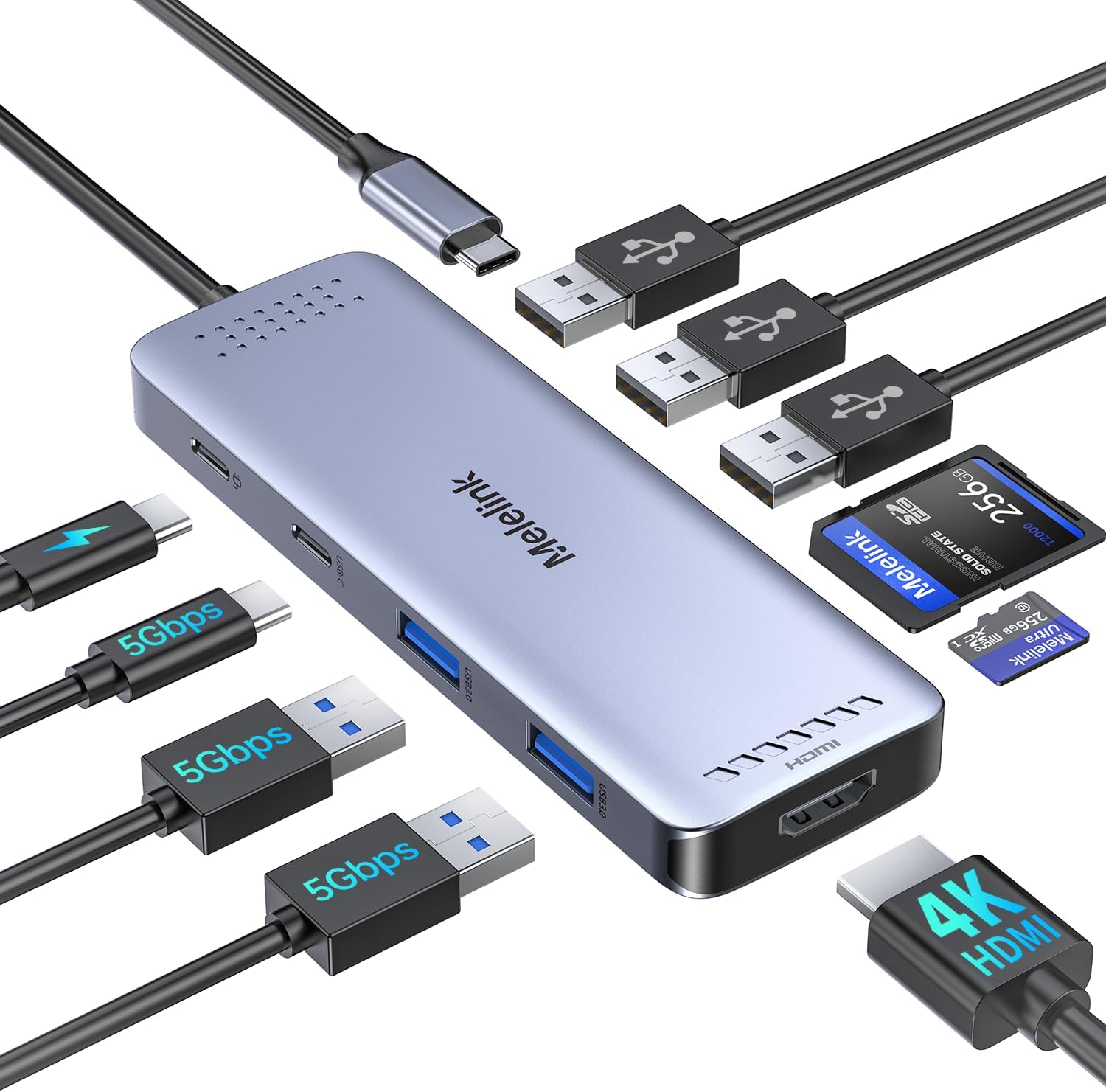
Best overall: 10-in-1 USB-C Multiport Adapter with 100W pass-through + confirmed dual monitor support
The 10-in-1 USB-C Multiport Adapter is the one that actually lives on my desk. Dual monitors, SD slots, fast data, and the MacBook charges at full speed through it. The difference-maker: its dual-monitor support is confirmed on my chip — verify for yours. The SD slot is a real UHS-I reader, the floor for this job — a day of 4K footage offloads in minutes, where a USB 2.0 “SD slot” takes half an hour. For a desk hub, staying connected and cool with hidden cables matters.
Best for travel: Anker 7-in-1 USB-C Hub with one HDMI
When you need the essentials without the footprint: the Anker 7-in-1 USB-C Hub gives you one external monitor, an SD slot, a couple of USB-A, and enough power to keep the laptop charged. On the road it’s one HDMI to the hotel TV, dump footage to an SSD, charge overnight. “Powered” matters more here — an unpowered hub borrows from the MacBook’s power budget, and hotel desks have no second port to spare.
The one to skip: ultra-cheap dongle hubs
Same story as always — they fail under load. I had one drop an SSD transfer mid-move of a client’s footage to a backup drive, and their “dual monitor” claims are fantasy. They’re usually unpowered, so every peripheral steals bandwidth and power, and loose connectors mean trouble within weeks. A $15 dongle that fails when you need it isn’t a deal — it’s a tax.
Comparison table
| Hub | Pass-through | Monitors | SD slot | Best for |
|---|---|---|---|---|
| 10-in-1 USB-C Multiport Adapter | 100W | Dual* | Yes | Full desktop setup |
| Anker 7-in-1 USB-C Hub | 100W | Single | Yes | Travel |
| Pocket dongle | 60W or less | Single/fake | No | Avoid |
*Dual monitor support varies by Mac chip — always verify for your exact model.
Setup and cable notes
A good hub on a bad cable is a bad setup. A few notes from months of daily plugging:
- The cable is part of the purchase. A 100W cable needs a 5-amp rating and an e-marker chip inside; cheap phone cables are usually 3A/60W, which silently caps charging even through a 100W hub. Use the bundled cable or one rated 100W (or 240W EPR).
- Feed the hub what it promises. A 100W pass-through hub needs a 100W adapter — ideally a bit more, so the hub and peripherals don’t eat into the laptop’s share. A 60W adapter into a 100W hub gives you 60W minus overhead.
- Which MacBook port? Every Thunderbolt port on Apple silicon charges — left versus right makes no electrical difference, so use whichever side keeps the cable out of your way. Exceptions: some hubs only pass power through a designated port, and the 16-inch MacBook Pro caps at 100W over USB-C.
- Power up in order. Adapter first, then MacBook, then peripherals — avoids the “not charging” hiccups macOS sometimes shows.
FAQ
Why does my MacBook only show one external monitor? Almost always your chip, not the hub: base M1/M2 MacBooks support one external display, M3 Airs add a second with the lid closed, Pro chips do two, Max chips three or four. If yours supports two and only one shows, try another hub port.
Is 60W pass-through enough? For a 13-inch Air doing light work, usually yes. For a 14-inch Pro exporting or rendering, no — a 60W hub delivers 60W minus overhead while the laptop wants 60–90W, so it drains under load. My rule: 100W or don’t bother.
Will a hub slow down my SSD? Only if the hub’s data path is the bottleneck. Cheap hubs run their USB ports off a shared USB 2.0 or 3.0 controller — fine for a mouse, slow for footage. Look for USB 3.2 Gen 2 (10Gbps) data ports — don’t fill every port during a big transfer; they share bandwidth. Mine crawled only on the cheap dongle; the 10-in-1 USB-C Multiport Adapter held its rate for 30 minutes.
Which side should I plug into? Any Thunderbolt port on Apple silicon charges — left and right are identical, so pick whichever keeps the cable off your mouse hand. Caveat: the 16-inch MacBook Pro maxes at 100W over USB-C; 140W needs MagSafe 3.
Are Apple’s own hubs worth it? Apple doesn’t make a general-purpose hub — it sells the USB-C Digital AV Multiport Adapter (one HDMI, one USB-A, pass-through charging) and Thunderbolt cables, and they never misbehave. But it costs several times a third-party hub with SD slots and more ports. I’d take a powered third-party hub and keep Apple’s adapter as the travel spare.
Bottom line
Buy a powered hub with 100W pass-through, and verify dual-monitor support for your specific Mac chip before ordering. The Anker 7-in-1 USB-C Hub is the second-best buy; skip the cheap dongles entirely. This is one of the most-returned product categories on Amazon, and it’s almost always because people skipped the chip check.
How this was tested: Hubs ran for 3+ months on Michael’s MacBook setup — dual monitors, daily SSD transfers, SD card workflows, full-load charging. The “failed mid-transfer” dongle is a real tested-and-returned unit.
As an Amazon Associate I earn from qualifying purchases. Full methodology on the How We Test page.
Never miss a pick
Join the list for new gear drops, honest test results, and what actually broke.
Subscribe on YouTube